Xero Setup Mistake to Avoid: Bank Feed Gaps and Incorrect Opening Balances
One of the most common Xero setup errors we see is when a new small business owner sets up their Xero file, connects the bank feeds and then watches transactions start flowing in. Very quickly they notice that the Xero bank balance never seems to match up with the real bank balance. No matter how many transactions they reconcile, something always looks off.
This almost always comes back to two missing setup steps. Xero needs the correct opening balance, and it needs a complete run of transactions from your chosen start date up until the feed begins. If either of those pieces are missing or incomplete, the bank balance will never reconcile properly.
Step 1. Decide on your Xero Start Date
The big decision for your new Xero file is your opening date. Your opening or start date is the point from which Xero will start tracking your transactions. Many small business owners choose 1 July so the file begins on a clean financial year and you can produce the full year’s reporting for tax. If you are unsure how to choose your opening date, see our companion guide on deciding your Xero start date.
Whichever date you choose, everything in Xero must anchor to it.
Step 2. Enter the correct opening balance
In Xero this is called the “Conversion Balance”, you need to tell it what the closing bank account balance is from the day before your opening date. For example, if your opening date is 1 July, use the bank's closing balance on 30 June.
Avoid using the balance you see in your online banking on the morning of 1 July. It must be the closing balance on the last day before your ‘opening date. Use your official bank statements to determine this.
Conversion Balance setup is usually best done with the guidance of a BAS Agent or Accountant as it needs other items entered as well as the bank balances. But you can put the bank balances in to get started.
Step 3. Connect the bank feed
Once your opening balance is entered, connect the bank feed. The options when you connect your bank feed depends on which bank you use. Some will pass you through to authenticate with your bank and some require you to download a form, sign it and re-upload it. Some ask whether you want the bank feeds to start from today or prompt you to choose a start date for the data. Once connected, it can take a few days for transactions to begin flowing into Xero.
We recommend not importing any manual data files at this stage until the feeds are turned on and you see what date they commence from.
Step 4. Identify the missing transaction date range
Usually a few days after authorising a bank feed the transactions will start coming into Xero. Check the earliest date of transactions received. This tells you exactly where the bank feed began and now you need to work out the date range for your gap.
For example:
• Conversion/Opening date: 1 July
• Feed starts delivering from: 14 July
• Missing window: 1 July to 13 July
This is the period you will need to import manually.
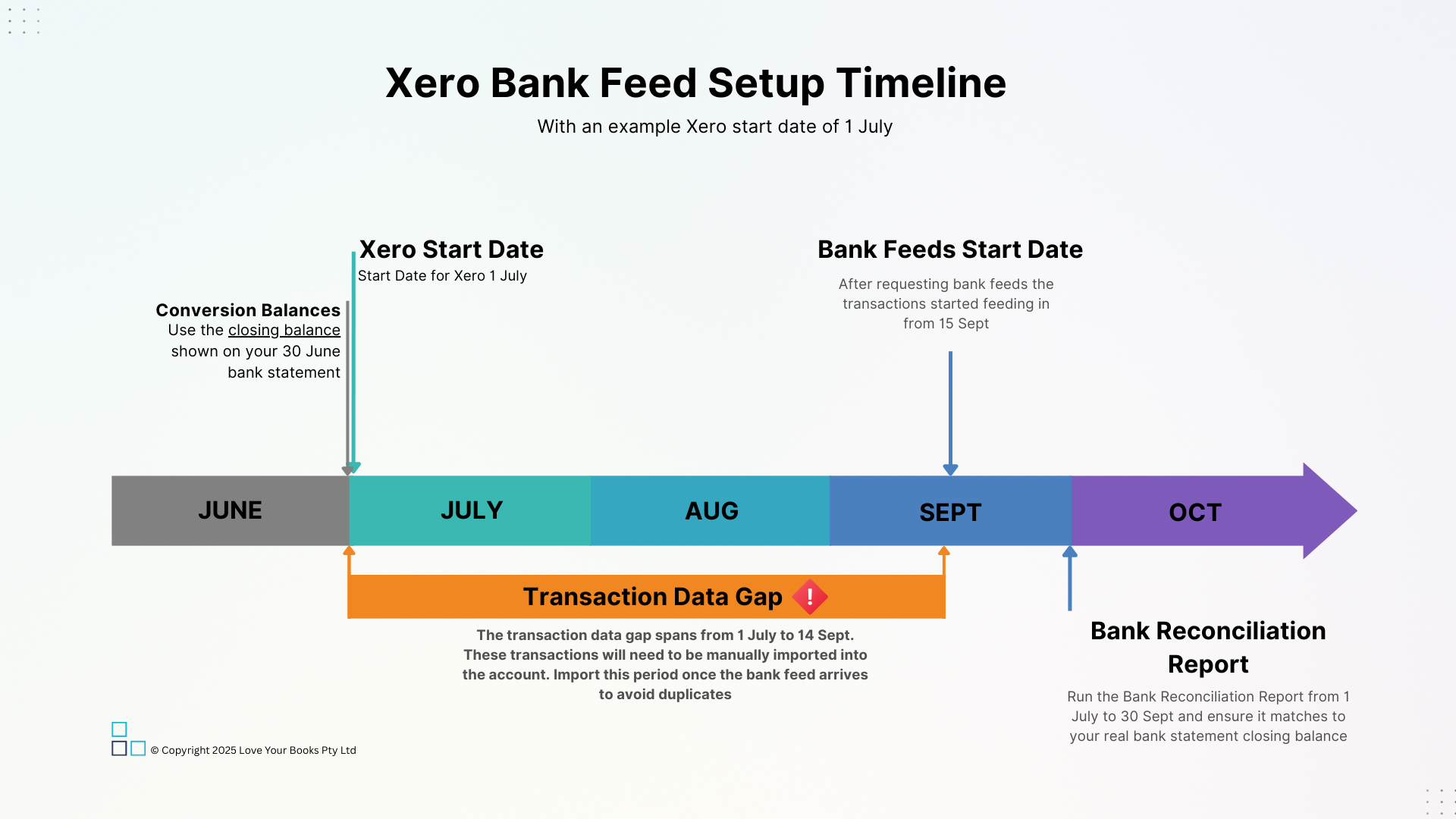
This timeline shows how your Xero start date, your conversion balance date and the bank feed start date all connect. Any period between your start date and the first day of feed data is your transaction gap. Import this gap manually to create a complete and accurate bank history.
Step 5. Import the full transaction gap in one file
In your online banking, set the transaction date range for the exact transaction gap. Ideally download as QIF file or CSV file from your bank that covers the exact missing period. Import only that window. Do not bring in any transactions that the bank feed already supplied.
This avoids overlapping data, duplicated transactions and unreconcilable balances.
Once the import is complete, you should have a continuous and accurate run of transactions from your opening date to the present.
Step 6. Reconcile the account
With the opening balance correct, the feed connected and the missing window imported, your Xero bank balance should now match the real bank balance. Once you have allocated all the transactions on your Bank Feeds use the Bank Reconciliation Report for the full date range from the opening date to present day to check for any errors.
From here, reconciliation becomes straightforward. If it still does not match, common causes include:
the opening balance was not the true closing balance from your bank account
the manual import overlapped with the bank feed causing duplicates
the gap period was not fully imported causing missing transactions
Fixing these early prevents ongoing confusion and incorrect data being used for your reports and BAS.
A correct opening balance and a complete transaction history are the foundation of reliable bank reconciliation in Xero. Once these pieces are in place, everything else becomes much easier to keep in balance.
Need Help Getting It Set Up Properly?
If you would like help getting your Xero file set up cleanly from the start, see our Xero Setup service.
If your file is already running but the bank balance still does not look right, our Xero Health Check can identify any gaps or overlaps so you can move forward with confidence.
You may also find these helpful
Disclaimer
The information in this article is general in nature and provided for educational purposes only. It does not constitute personal financial, legal, or tax advice and should not be relied upon as such. Every business has unique circumstances, and we strongly recommend consulting with a registered tax agent, BAS agent, or legal advisor before making decisions about your company setup, payroll, or financial systems. While care is taken to ensure accuracy, laws and software functionality may change over time.